TFOdev Product ManualsPre-flight:
Follow all of DJI's and your own SOPs before launching, and make sure
the top left has no errors. Refer to the DJI application if errors
show. Wait for the camera preview to appear before taking off.
TFODev - OPSx Manual
Live FPV, Telemetry, and AR Overlay Control
TFODev - OPSx is an Android ground-control and streaming app for DJI
Mavic 3T / M30T / M4T aircraft. It binds the drone camera to the local
screen, publishes low latency video and telemetry to the event,
renders an AR layer on top of the live feed, and exposes lens,
thermal, recording, spotlight, LED, AI, Voice Conferencing, and air-traffic
controls all while paired with the OpsX Web companion on other devices.
Core Functions
Publish low latency video to the event.
Publish telemetry, flight-start, AI detection, and air-traffic data to the event.
Switch between wide, zoom, and thermal/IR lenses.
Render an AR layer with live address and road labels.
Start and stop local recording.
Toggle voice conferencing, spotlight, blink, and nav LEDs.
Start and stop AI detections.
Features
Live Video with overlay HUD (flight mode, compass, coords, RC, GPS, home, battery)
Camera info row: EV, ISO, palette, thermal mode, FFC, night scene, IR cut, free space
PIP setting on thermal automatically links the zoom between the wide and thermal feeds
AR overlay with address and road labels, driven from live GPS
AI auto-sensing with on-screen detection boxes
Air-traffic indicator for nearby crewed aircraft
Voice conference control (long-press to start/stop)
AES-GCM end-to-end encryption honored when the event is keyed by an OpsX (SC) operator
Basic Use
Launch OpsX on the DJI controller.
Wait for the camera preview to appear.
Confirm the top status row shows RC, GPS satellites, home, and battery.
Long-press the cast icon to manually start or stop publishing.
Use W/Z or Zoom / IR to pick a lens; use + / – to step zoom.
Tap REC to start and stop local recording.
Tap AI to start or stop auto-sensing detections.
Tap the spotlight, FLASH, or LED buttons to drive payload and nav lights.
Tap the mic icon to toggle the audio; tap the home icon to look at the home point.
Operator Notes
The HUD, Primary Video Camera, laser-coordinate banner, and
air-traffic state refresh continuously while the session is live. An internet
connection is required for cloud publishing and AR label data.
Heading shown in the HUD, FPV compass, and AR camera is corrected
using the local magnetic declination on motor start. If that lookup
fails, OpsX falls back to the raw compass value.
When an OpsX (SC) operator has entered an AES-GCM
key for the event, the session is end-to-end encrypted. OpsX joins
the same event as the drone publisher — no key is entered on the
drone side; the encryption is inherited from the SC-configured
session. If AES-GCM is not enabled, the stream still uses TLS
transport encryption, but it is not as secure as the AES-GCM
end-to-end encryption mode.
UI Reference
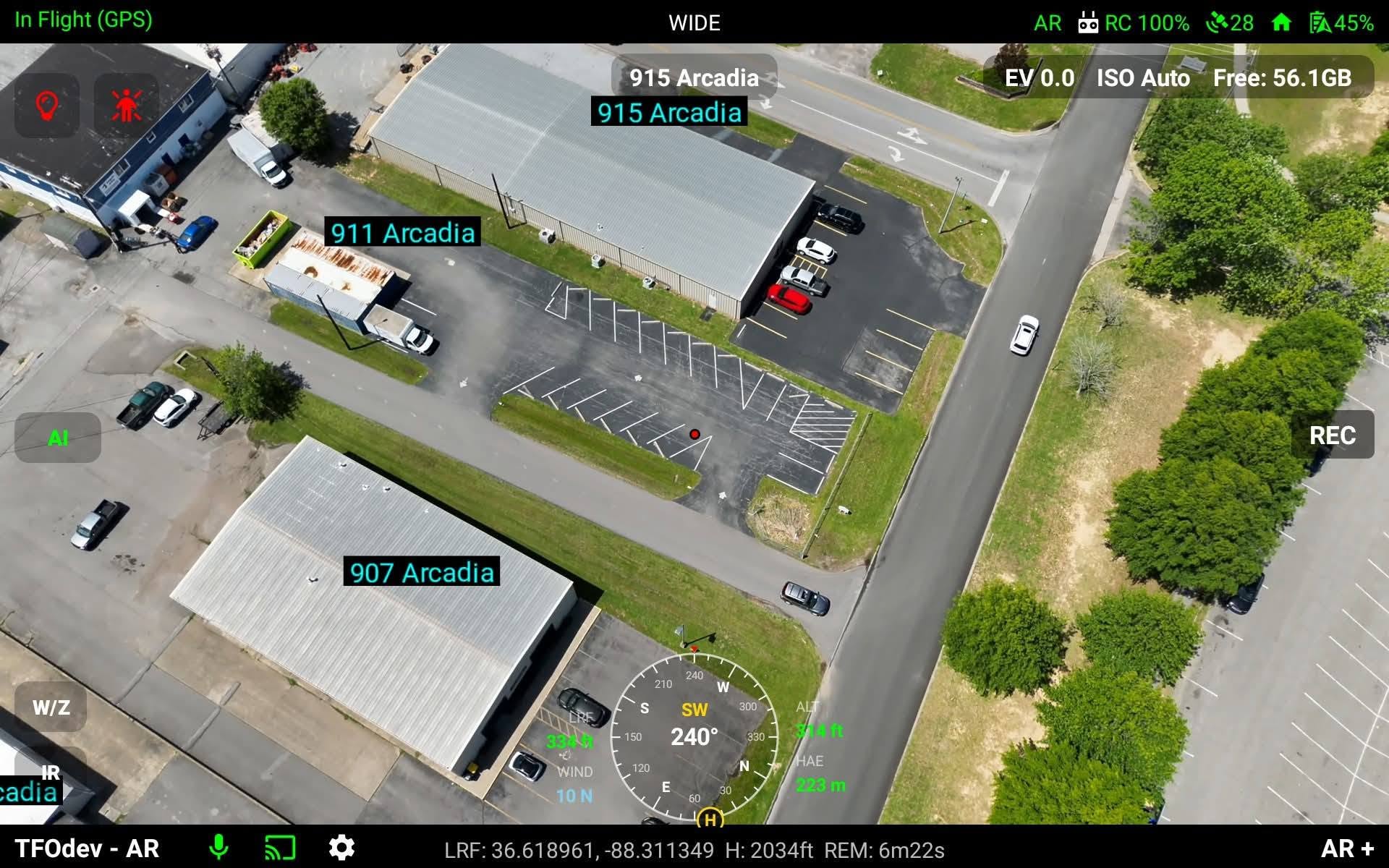
Live screenshot of the in-flight HUD. The table underneath maps each
control to what it does.
RC signal
Percent link quality from the controller to the aircraft.
GPS satellites
Visible satellite count. Required for geo-referenced telemetry and AR labels.
Home
Tap to issue a LookAt toward the home point. Rendered in red when locked.
Battery
Aircraft battery percent. On the M30T this is the complete available power left. Pair with the camera-info row's Free: counter to track recording capacity.
Spotlight
Toggles the payload spotlight first and falls back to native spotlight keys. The adjacent FLASH button pulses the beam when supported.
Nav LED
Toggles the aircraft navigation LEDs. Drawn in red when active.
Air traffic
Appears when nearby crewed aircraft are detected.
Mic
Toggles the operator microphone uplink. Red icon means the mic is live.
Cast
Indicator for the publishing session. Long-press to start or stop publishing manually.
Settings
Opens the OpsX settings.
RC Shortcuts
C1 Refreshes 911 address data in Wide and IR.
C2 Center autofocus on the wide or zoom lens.
C3 Reset gimbal pitch and yaw.
Scroll Optical zoom step on the zoom lens; thermal zoom step on the IR lens.
5D ▲ Refreshes 911 address data in Wide and IR — same as C1.
5D ▼ Runs rmanno() in the AR WebView — removes current annotations.
Connectivity
OpsX needs an active internet connection for cloud publishing, AR
address and road labels, terrain elevation, and magnetic declination.
Pair this drone with an OpsX (SC) device on the same event code to
get participant presence, shared GPS pins, and the SC-configured
AES-GCM encryption state inside the same event.